How to Save a Tweet for Later (and Actually Use It)
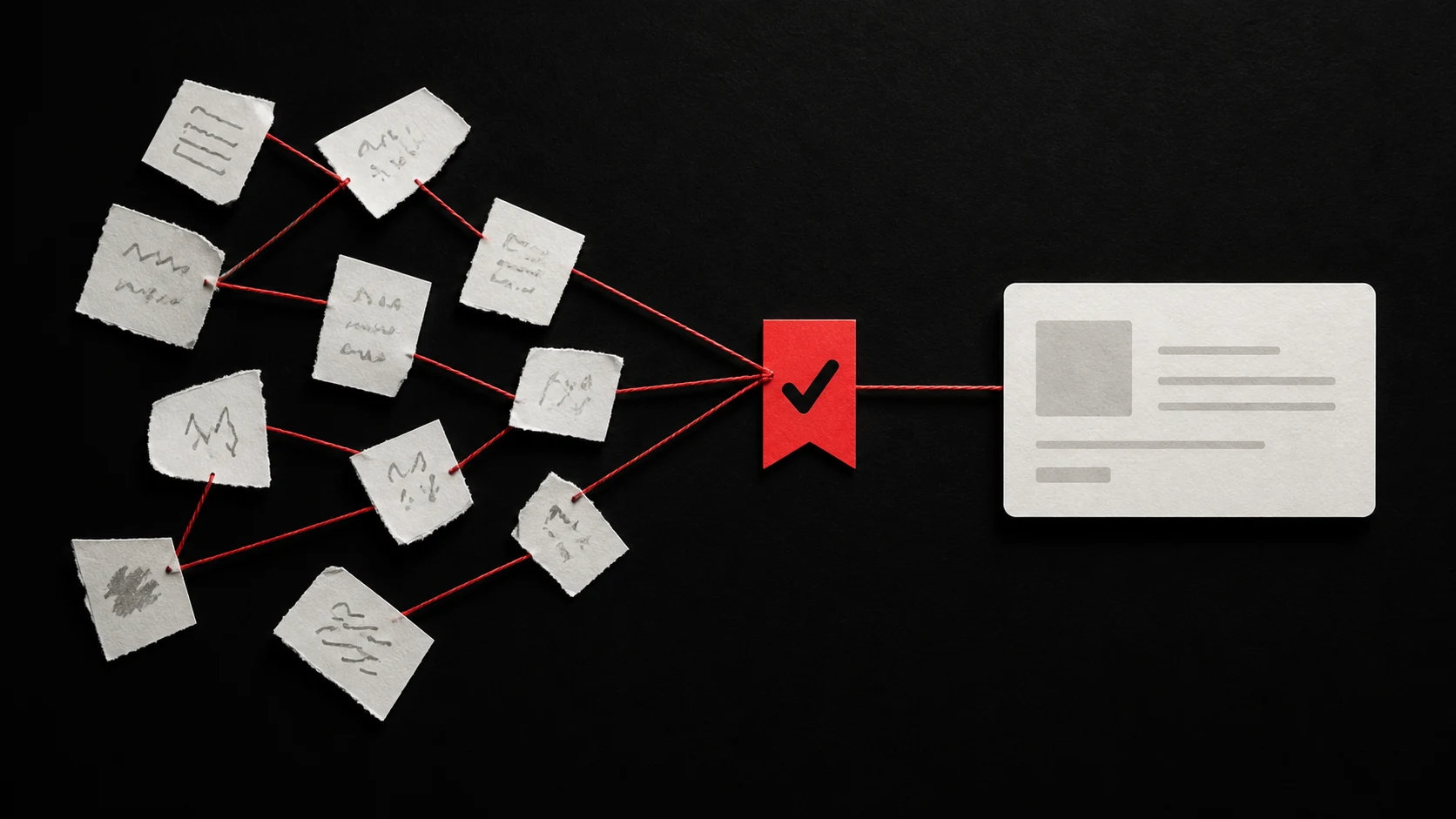
Tap the bookmark icon under a post, or open the share menu and choose "Add post to Bookmarks." The post lands in your private Bookmarks tab and stays there until you remove it. That is the complete native X flow for saving a tweet for later. What X does not do is help you act on it. This guide covers the bookmark mechanics accurately, then gives you a follow-through workflow that turns a saved tweet into something you actually use.
How X bookmarks actually work
X's official bookmarks help page documents the core behavior:
- Private to your account. X says bookmarks are only viewable to you inside your account.
- Available on mobile and desktop web. On a post, use the bookmark icon where X displays it or the share menu's "Add post to Bookmarks."
- One place to find them. Open the Bookmarks tab — the left sidebar item on desktop web, or the profile/menu entry on mobile.
- Easy to remove. Tap the bookmark icon on a saved post again, or use the share menu's "Remove from Bookmarks."
- Folders for organizers. X says subscribers to its Premium tiers can group bookmarks into private named folders. Folders sort the pile; they do not make the pile actionable.
What bookmarks are good at (and what they aren't)
Use bookmarks for what they excel at: holding a post you might want to find again. Reference material, a thread you will cite, a tutorial you plan to follow this weekend — bookmark those freely while scrolling. The cost of saving is near zero, and folders can make the pile easier to scan.
What a bookmark does not capture is why you saved it. Three weeks later, the thread is still there but the reason is gone: what it connected to, what you meant to do, what was urgent about it. That gap is exactly the content-to-task problem: a bookmark preserves the source, and a task preserves the decision.
Bookmarking is the cheapest capture move there is, so the failure is never the saving — it is whatever happens after. The system below exists to make that after-step tiny enough to actually do.
If the pattern sounds familiar, you are not failing at bookmarking. The deeper write-up on why bookmarks become a graveyard of intentions explains why storage alone never turns into action, and our guide to saving tweets as tasks covers the habit in detail. The workflow below is the short version you can run today.
A follow-through workflow that takes two minutes a day
- Bookmark freely while you scroll. Capture first, judge later. Judging every post mid-scroll breaks reading.
- Sweep once a day. Open Bookmarks and apply the three-line rule to each new save: an action (the next thing you will do because of this tweet), the source (the tweet, kept attached), and a review date (when it should resurface). If you cannot write the action line, the tweet was entertainment — archive it without guilt.
- Keep the list short. Ten tweet-tasks you act on beat four hundred bookmarks you fear. If the sweep keeps producing more tasks than you finish, raise the bar on the action line, not the hours in your day.
- Give the survivors a home. A tweet-task with a date belongs in your task system, not back in the pile. That is where a capture tool earns its place.
- Review weekly. Anything that survived two sweeps and still has no action was not a task. Delete it and move on.
Here is the whole loop on one thread, concretely. You bookmark a post comparing three ways to price a product. On the next sweep you write the action line: "Test the three-tier pricing table from this thread on our pricing page." The source is the thread itself, kept attached. The review date is next Tuesday. When Tuesday comes, either you ran the test and the task closes, or you did not and the task gets a new date — or gets archived because the thread turned out to be entertainment after all. The point of the date is that the decision happens out in the open instead of silently in a bookmark pile.
Turn a saved tweet into a task with Glean
Glean accepts saved tweets, YouTube videos, web links and screenshots as captures. Glean creates a todo document that holds the capture and its context. Glean turns a saved capture into a todo document with a reminder.
The capture flow on iPhone starts from the share sheet:
- Open the post in X.
- Tap the share icon, then choose Glean from the share sheet.
One honest note: bookmarking inside X does not push anything into Glean. There is no hidden sync between your X bookmarks folder and the app — sharing the post to Glean is the step that moves it. On desktop, capture the same post with the Glean browser extension or paste the link into Glean. If you want the share-sheet versus extension tradeoff spelled out, the extension vs iOS sharing comparison covers it.
The scope is worth knowing too: sharing a post sends only that post to Glean. Your bookmark list stays in X, private and untouched, and nothing else from your account moves over. That separation is exactly right for the workflow — X keeps being the reference shelf, and Glean only sees the posts you deliberately hand it.
Glean is publicly listed on the App Store for iPhone.
When a tweet deserves archiving instead
Not every save is a task. A funny thread, a news update you will not act on, a post you saved because you liked the vibe — none of those need an action line. The most productive thing you can do with them is delete the bookmark and feel the pile shrink.
Run a monthly purge too: clear anything older than a month that never got a review date. Five minutes, and the list stays honest.
Next time you save a tweet, bookmark it as usual. On your next daily sweep, share the one you would genuinely act on to Glean, and archive the rest. That is the whole system.
Share what you read. Get your next step.
Every save you share comes back as one task for your project, with the reason it fits you.