How to Turn Screenshots Into Tasks You Can Actually Finish
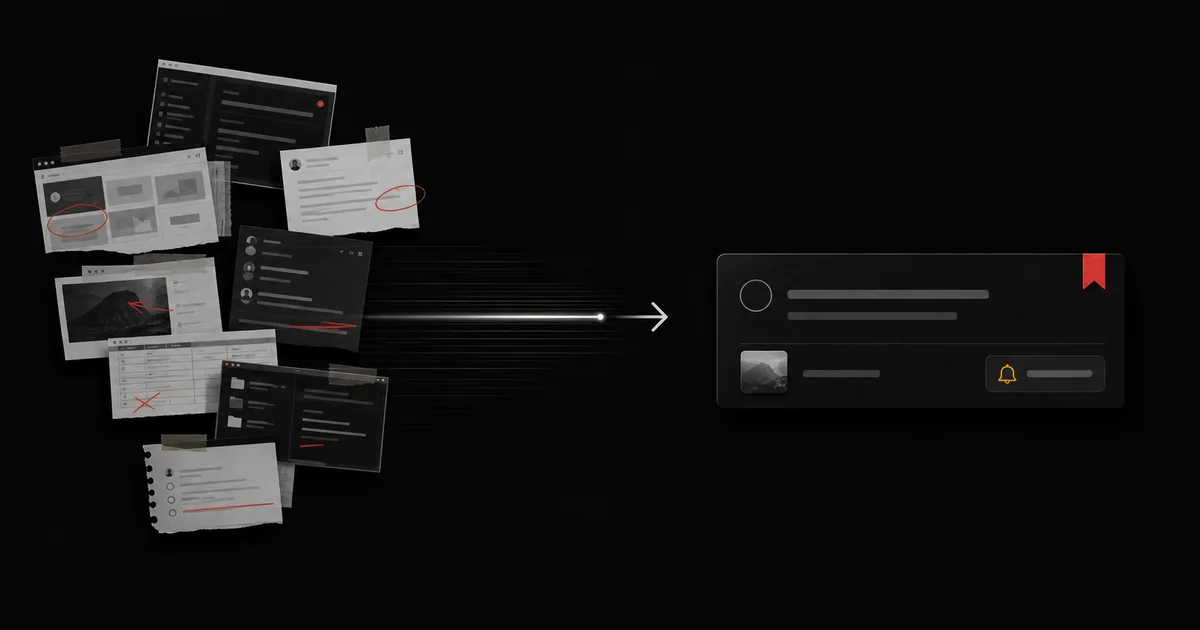
To turn a screenshot into a task, preserve the image as the source, write why you captured it, choose one visible next action, add the context needed to act, and set a review point. The screenshot proves what caught your attention. The task decides what happens next.
Start with Glean when you want that screenshot to move into a clear task. Glean accepts saved tweets, YouTube videos, web links and screenshots as captures, then turns a saved capture into a todo document with a reminder.
Without that decision, screenshots become a second camera roll full of unnamed obligations.
Use the five-field screenshot rule
Every useful screenshot task needs five fields:
- Source: the original image.
- Signal: what in the image matters.
- Action: the next thing you will do.
- Context: the project, person, file, or constraint needed to act.
- Review: when the task should return.
``text Weak task: Look at this later
Useful task: Compare the three pricing objections circled in this customer screenshot with the current checkout copy. Draft one revision for the annual plan section by Friday. `
The second task survives even when you forget the moment of capture.
Decide whether the screenshot deserves a task
Ask one question:
> Will this image change a decision, produce work, or preserve evidence I need?
Create a task when the screenshot contains:
- a bug you need to reproduce;
- a quote that should change copy;
- a product idea worth testing;
- a receipt or confirmation tied to an action;
- a design pattern you plan to compare;
- a message that requires a reply;
- instructions you will follow in a real project.
Write the action as a verb plus an object
Start with a visible verb:
- reproduce the checkout error
- reply to Mara about the revised date
- compare this empty state with the current onboarding
- add the expense to the July report
- test the keyboard shortcut shown in the screenshot
- extract the three ingredients into the shopping list
If you cannot name an action yet, create a decision task:
> Decide whether the screenshot belongs in the onboarding redesign. Compare it with the current empty state and record keep, adapt, or reject.
Preserve enough context to restart
Your future self needs more than pixels. Add:
- where the screenshot came from;
- which project it affects;
- the person or team involved;
- the file, screen, or URL you need;
- what “done” looks like;
- any privacy limit on sharing or storage.
Handle common screenshot types
| Screenshot | Signal to capture | Useful next action |
|---|---|---|
| Error message | Exact state and visible message | Write reproduction steps and open the affected build |
| Customer message | Problem, wording, and urgency | Reply or add the evidence to the relevant product decision |
| Design pattern | What specifically works | Compare one component with your current screen |
| Receipt | Vendor, purpose, and date | Add it to the correct expense record |
| Event or booking | Date, place, and requirement | Add the event and prepare the required item |
| Article excerpt | Claim or idea that matters | Verify the source and use it in a named deliverable |
Keep private screenshots private. Remove or avoid capturing passwords, payment details, health information, confidential conversations, access tokens, private keys, and another person’s data when you do not need them.
Build a capture-to-task review
Use one short processing pass:
- Open the new screenshots.
- Delete accidental and duplicate images.
- Move pure references to the right library.
- Convert actionable screenshots into tasks.
- Add the source and context.
- Schedule or place the task in its project.
Use Glean without overstating the automation
Glean accepts screenshots as captures and creates a todo document that holds the capture and its context. Glean proposes a next action from a capture and turns the one you accept into a plan. It can also attach a reminder to the todo.
You still own the decision. Check that the proposed action matches the screenshot, remove private context you do not need, edit vague wording, and reject a plan that does not fit your project.
Glean does not guarantee that you will complete more tasks or that every proposed action is correct. The useful result is a task you understand and choose.
Keep the source attached, then write for disappearance
Attach the screenshot because it preserves evidence. Write the task so it still makes sense if the image becomes unavailable.
Use this test:
> If the screenshot vanished tomorrow, would I still know what to do?
If the answer is no, add the missing context now.
Copy this screenshot-to-task template
`text Screenshot source:
What matters in it:
Next action:
Project or person:
Needed context or file:
Definition of done:
Review date or reminder:
Privacy check: ``
Use the template on the newest screenshot that still matters. If it cannot produce a source, signal, action, context, and review point, it probably does not need to become a task.
Everything you save becomes a task that gets done.
Capture the source, review the task, and get it done, yourself or with your agent.