How to Clean Up Your Bookmarks and Keep the Ones You Use
To clean up your bookmarks, export them to an HTML file as a backup, delete the duplicates and empty folders, then sort every remaining bookmark into one of three piles: references you open often, links you will act on, and links you will never open again. Delete the third pile, turn each link in the second pile into a task with a next step, and keep folders only for the references.
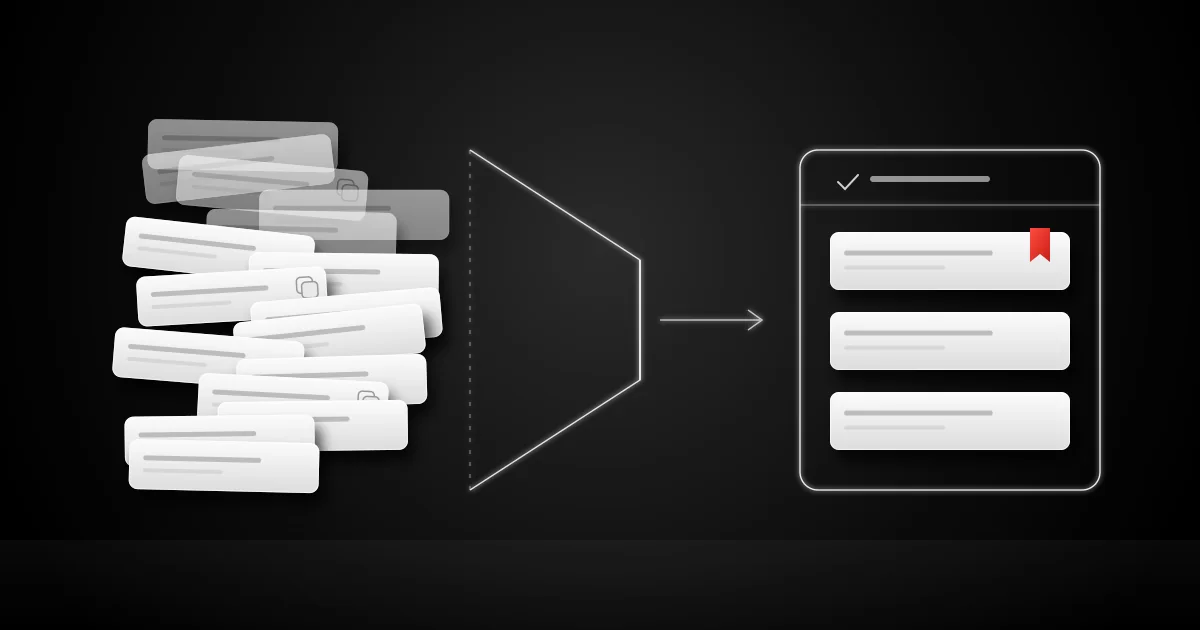
Below you get the steps for Chrome, Firefox and Safari, a fast way to find duplicates, a sorting rule you can apply in seconds per link, and the mistakes that bring the mess back a month later.
Back up your bookmarks before you delete anything
Every browser can write your bookmarks to a single HTML file. That file is your safety net: if you delete the wrong folder, you import it and get everything back.
| Browser | Export your bookmarks |
|---|---|
| Chrome on a computer | Open More, then Bookmarks and lists, then Bookmark Manager. Open More at the top and choose Export Bookmarks, as Chrome Help describes. |
| Firefox | Open Manage bookmarks, click Import and Backup, then choose Export Bookmarks to HTML. Firefox names the file bookmarks.html, as Mozilla Support shows. |
| Safari on a Mac | Choose File, then Export Browsing Data to File, keep Bookmarks selected and save. Safari writes a .zip file, as Apple Support explains. Open it to get the bookmarks file. |
Save the file somewhere you will find it again and add the date to its name, such as bookmarks-2026-10-18.html. Apple also warns that the export is not encrypted, so delete old copies once you no longer need them.
Find and delete duplicate bookmarks
Duplicates pile up quietly. You save the same article from your phone and your laptop, a newsletter link arrives with tracking tags, or you save a page twice under different folders. Your browser's bookmark manager shows each bookmark inside its folder, so the copies of one address hide in different places.
Drop your export into the free bookmark cleaner. It reads the file in your browser, lists every address you saved more than once with the folder and date of each copy, and builds a clean file without the extra copies. It also treats two addresses as one page when only the letter case of the domain or a default port differs, the normalization that RFC 3986 defines. So HTTPS://Example.com:443/guide and https://example.com/guide count as the same bookmark.
Decide two things before you delete:
- Campaign tags. A link from a newsletter often ends with tags such as utm_source=newsletter. Google Analytics uses these utm_ parameters to label where traffic came from. Treat a tagged link and a clean link as the same bookmark unless the tag changes what the page shows.
- The part after #. A link that ends with #setup jumps to one section of a page. If you saved two sections of the same guide on purpose, keep both. If you did not, treat them as one page.
Sort every bookmark into keep, act or delete
Once the duplicates are gone, go through what is left, one folder at a time, and give each bookmark one of three labels. Spend no more than ten seconds per link: open it only when the title tells you nothing.
| Label | What it means | What you do now |
|---|---|---|
| Keep | You open it every week, or you need it as a reference you cannot search for: a dashboard, a login page, internal docs | Leave it in a small, named folder or in the bookmarks bar |
| Act | It asks you to do something: try a tool, apply a technique, reply to someone, buy something | Turn it into a task with a verb, then delete the bookmark once the task holds the link |
| Delete | You saved it because it looked interesting, the project ended, or a search finds it again in seconds | Delete it without a second look |
Let most of an old list go to Delete. A bookmark you never open costs you nothing to delete, and the backup you exported keeps it if you ever change your mind.
For the Act pile, the bookmark cleaner lets you tick each link you will act on and copy them as a Markdown to-do list with the folder and the day you saved each one. Paste that list into your task manager and write a real verb into each line: "Try the export script on the March invoices" beats "Interesting script".
Delete empty folders and flatten the rest
Empty folders and folders with one link make every future save harder, because you have to choose where things go. After sorting:
- Delete every folder that holds nothing. The bookmark cleaner lists them for you.
- Merge folders that hold fewer than five links into a parent folder.
- Keep no more than two levels of folders. Deep trees hide links, and you stop opening them.
- Name folders after what you do with them, such as Dashboards or Docs, never after a vague topic such as Cool stuff.
Import the clean file safely
If you used the bookmark cleaner's clean file, know how your browser imports it before you replace anything. Your browser adds an imported file to the bookmarks you already have. Chrome puts imported bookmarks in your bookmarks bar when you have none, and in a folder under Other bookmarks when you already have some. Firefox adds them to the Bookmarks Menu and warns that the import can create duplicates.
So follow this order:
- Keep your original export as a backup.
- Delete your current bookmarks in the bookmark manager.
- Import bookmarks-clean.html.
- Open five bookmarks you use every week and check that they work.
Avoid the mistakes that bring the mess back
- Deleting without a backup. Export first, every time. The file takes a few seconds and saves you from a lost folder.
- Building a perfect folder tree. A tree with twenty folders feels organized and stays unused. Keep a few folders you open every week.
- Keeping links for someday. A bookmark you saved three years ago for a project you dropped will not come back to life. Delete it.
- Saving a link instead of deciding. If a link asks you to do something, write the task the moment you save it. Our guide on when a saved link should become a task shows how to tell references from actions.
- Cleaning once and never again. Put a ten-minute review on your calendar every Friday and run the same three labels on the week's new bookmarks.
Turn the links you keep into tasks with Glean
You just found the bookmarks that still ask you to do something. On your iPhone, share each one to Glean - Act on bookmarks from Safari or any other app. Glean writes the task behind the link with a title, context and subtasks, files it in the project it fits and keeps the source attached, so you never lose why you saved it. Share the first link on your Act list now and compare Glean's task with the verb you wrote.
Keep your bookmarks clean in ten minutes a week
Cleaning up once frees your bookmarks bar. Keeping it clean takes a small habit:
- Save a link only when you can name why: a reference you will open again, or an action you will take.
- Add actions to your task list the same day, with the link inside the task.
- Every Friday, open the bookmarks you saved that week and give each one a label: keep, act or delete.
- Once a quarter, export a fresh backup and drop it into the bookmark cleaner to catch new duplicates.
Answer common questions
How do I clean up bookmarks in Chrome?
Export your bookmarks from Chrome's Bookmark Manager as an HTML file, find the duplicates with a bookmark cleaner, then delete the extra copies and empty folders in the Bookmark Manager. Sort the rest into keep, act and delete, and turn each act into a task.
How do I find duplicate bookmarks?
Export your bookmarks to an HTML file and drop it into the bookmark cleaner. It lists every address you saved more than once, with the folder and date of each copy, and runs in your browser without uploading the file.
Should I delete old bookmarks?
Delete every bookmark you have not opened in a year unless you need it as a reference you cannot find again with a search. Your backup file keeps a copy, so deleting costs you nothing.
How many bookmarks is too many?
Count the bookmarks you open in a typical week. If that number is a small fraction of what you saved, your bookmarks have turned into a backlog. Keep the ones you open, act on the ones that ask for action and delete the rest.
Review the sources
- Google Chrome Help: Import or export bookmarks
- Mozilla Support: Export Firefox bookmarks to an HTML file
- Mozilla Support: Import Bookmarks from an HTML file
- Apple Support: Export Safari data to another browser
- RFC 3986: URI Generic Syntax, section 6
- Google Analytics Help: Collect campaign data with custom URLs
Share what you read. Get your next step.
Every save you share comes back as one task for your project, with the reason it fits you.