Your image stays on your device
Turn a screenshot or image into text you can copy
Drop, paste or pick screenshots and photos. You get editable text to copy, download or turn into a to-do list, and your images never leave this device.
Drop screenshots or photos here
Or paste one with Ctrl + V (⌘ + V on a Mac). Use PNG, JPEG, WebP, GIF or BMP files up to 25 MB.
How it works
Read a screenshot in four steps
- Add your images. Drop them on the page, paste one with Ctrl+V (⌘V on a Mac) or pick them from your files or Photos. I check every file first and skip PDFs, vector files and anything over 25 MB.
- Your browser prepares each image. It doubles small screenshots, shrinks anything above 12 megapixels, adds a white margin and flips dark mode screenshots to dark text on a light background. Tesseract's own guide asks for that: images of at least 300 dpi, dark text on a light background and a border around the text.
- Tesseract reads the text. The open-source Tesseract engine, compiled to WebAssembly by the Tesseract.js project, runs inside this tab with the language model you pick. I host the engine files on this site, so your image goes nowhere.
- You check, copy and act. Fix any word the engine got wrong, copy the text, save it as a .txt file or press Turn it into a to-do list for a checklist you can tick, edit and copy as Markdown.
Worked example
See it read a real screenshot
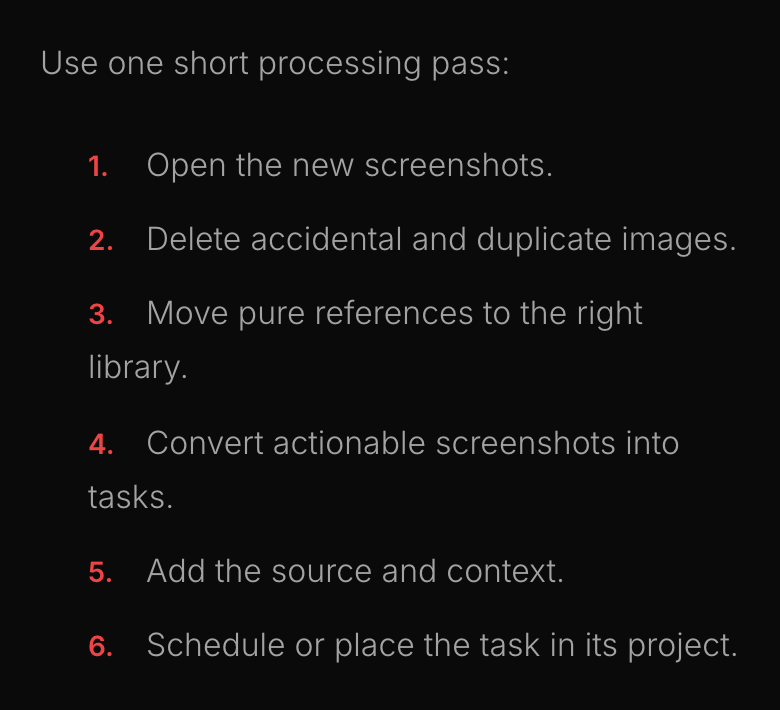
This phone screenshot shows the six-step review from the screenshots to tasks guide, in dark mode. Press Try the sample screenshot above to run it yourself.
The text you get
Use one short processing pass:

1. Open the new screenshots.
2. Delete accidental and duplicate images.

3. Move pure references to the right
library.

4. Convert actionable screenshots into
tasks.

5. Add the source and context.

6. Schedule or place the task in its project.
The to-do list it builds
- Open the new screenshots
- Delete accidental and duplicate images
- Move pure references to the right library
- Convert actionable screenshots into tasks
- Add the source and context
- Schedule or place the task in its project
I flipped the dark background before reading, then turned each numbered step into one to-do. Steps 3 and 4 wrapped onto a second line on the phone, so I joined those lines back to their steps. The intro line stayed out because it ends with a colon.
Questions
Find answers before you start
How do I copy text from a screenshot?
Drop the screenshot on this page or paste it with Ctrl+V (⌘V on a Mac), wait for the reading to finish and press Copy text. On Windows 11, the Snipping Tool also has a Text actions button with Copy all text, and Microsoft says its recognition runs on your device.
How do I convert an image to text on iPhone?
Open the screenshot in Photos, touch and hold a word, then tap Select All and Copy. Apple documents this Live Text feature for iPhone XS, iPhone XR and later models on iOS 15 or later. For several screenshots at once, open this page on your iPhone, tap Choose images and pick them from Photos.
How do I copy text from an image on Android?
Open the Google app, tap Google Lens, then tap Search and pick the image under Screenshots. Tap the text, tap Select text and choose Copy, as Google's Lens help page describes. You can also use this page in Chrome on Android.
Is this image to text converter private?
Yes. The OCR engine and its language files come from this site and run inside your browser tab, so your image and its text never reach a server. I keep nothing after you close the tab, except the language model your browser caches for next time.
Which languages can it read?
English, Spanish, French, German and Portuguese. Pick the language before you add the image, or press Read again after you switch. Tesseract.js supports more than 100 languages, and I host these five to keep your download small. Bullets, numbers and checkboxes turn into to-dos in every language; verb matching works on English text.
Why does the extracted text have errors?
OCR guesses every character from pixels, so small, blurry, skewed or low-contrast text fails first. Tesseract's guide asks for images of at least 300 dpi and warns that skewed pages cut accuracy. Crop to the text, zoom in before you take the screenshot and hold the camera square to the page. Handwriting stays hard: Tesseract's FAQ says the engine targets printed text. For a PDF, screenshot the page first, because Tesseract.js does not open PDF files.
Check the method
Understand your result
I decode each image in your browser, double screenshots under 2.5 megapixels, shrink anything above 12 megapixels, add a white margin and flip dark screenshots to dark text on a light background, as Tesseract's guide recommends. Tesseract then reads the text with the language model you pick. The to-do list keeps lines that start with a checkbox, a bullet, a number, a label such as To do: or an English verb, and joins a wrapped line to the item above it.
Read the screenshots to tasks guideCheck the sources
Source review date: