Your AI Todo List Is a Distraction Factory. Fix It.
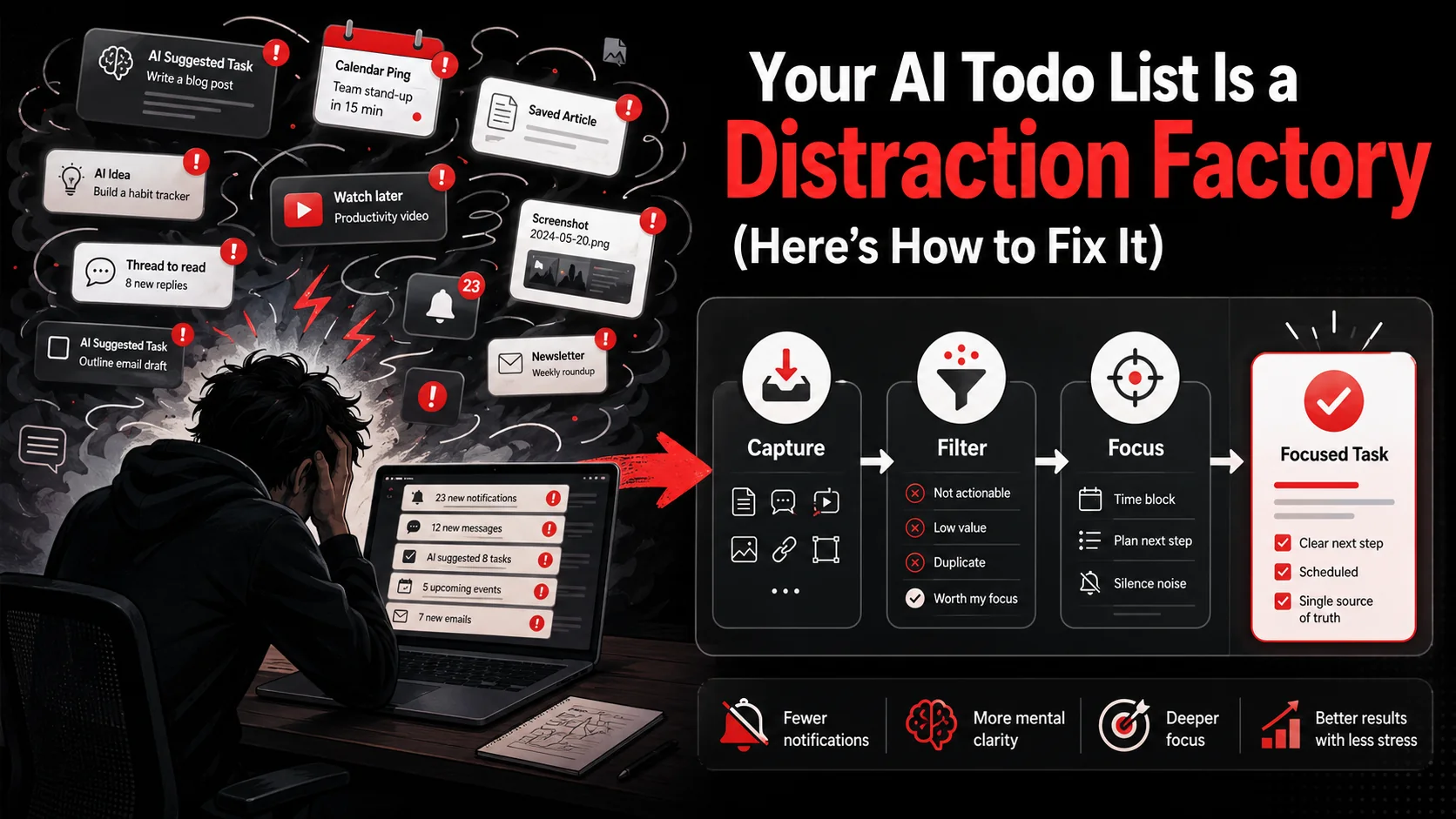
You know the feeling. You see a brilliant tweet about a new JavaScript framework. You watch a YouTube tutorial on a productivity system. You screenshot a clever UI pattern. You tap "Save to Todoist" or "Add to Things" with the best intentions. The AI dutifully parses it, creates a task, and files it away. And then, an hour later, your phone buzzes. "Review saved tweet about SvelteKit 5." Your watch taps your wrist. "Action item from YouTube: implement PARA method." Your inbox pings. "Follow-up task from screenshot."
By lunchtime, you've been "reminded" to do a dozen things you captured, but you haven't actually done any of them. You're just more anxious. The tool built to organize your inspiration has become your primary source of interruption. This isn't a bug in your chosen app. It's the fundamental flaw in how we've designed the capture-to-execution pipeline in the age of AI.
The promise was automation. The reality, in 2026, is a new kind of cognitive tax: AI notification fatigue. The conversation on Hacker News and developer Twitter has shifted. It's no longer about which app has the shiniest AI features. It's about the psychological cost of a system that constantly whispers "you should be doing this" without providing the context or focus to actually do it. That cost is measurable: informatics professor Gloria Mark told the American Psychological Association that her lab now clocks the average stretch of attention on one screen at 47 seconds, with a median of 40, and that "the faster the attention switching occurs, stress is measured... stress goes up." Your AI todo list isn't a productivity engine. Right now, it's a distraction factory. But it doesn't have to be. The fix isn't a new app. It's a new workflow.
How the Glean team put this page together. We build a capture-to-task app, so we read the interruption research before we shipped the inbox that ships in Glean today. Every figure you meet below carries a link in the same sentence, and we opened each of those sources in full before quoting it — no second-hand stat blogs. The workflow itself comes from running our own capture inbox: what survives here is what we still do on a Friday afternoon. Where we describe a habit rather than a measurement, we say so plainly instead of dressing it up as data.
Understanding the AI Notification Spiral
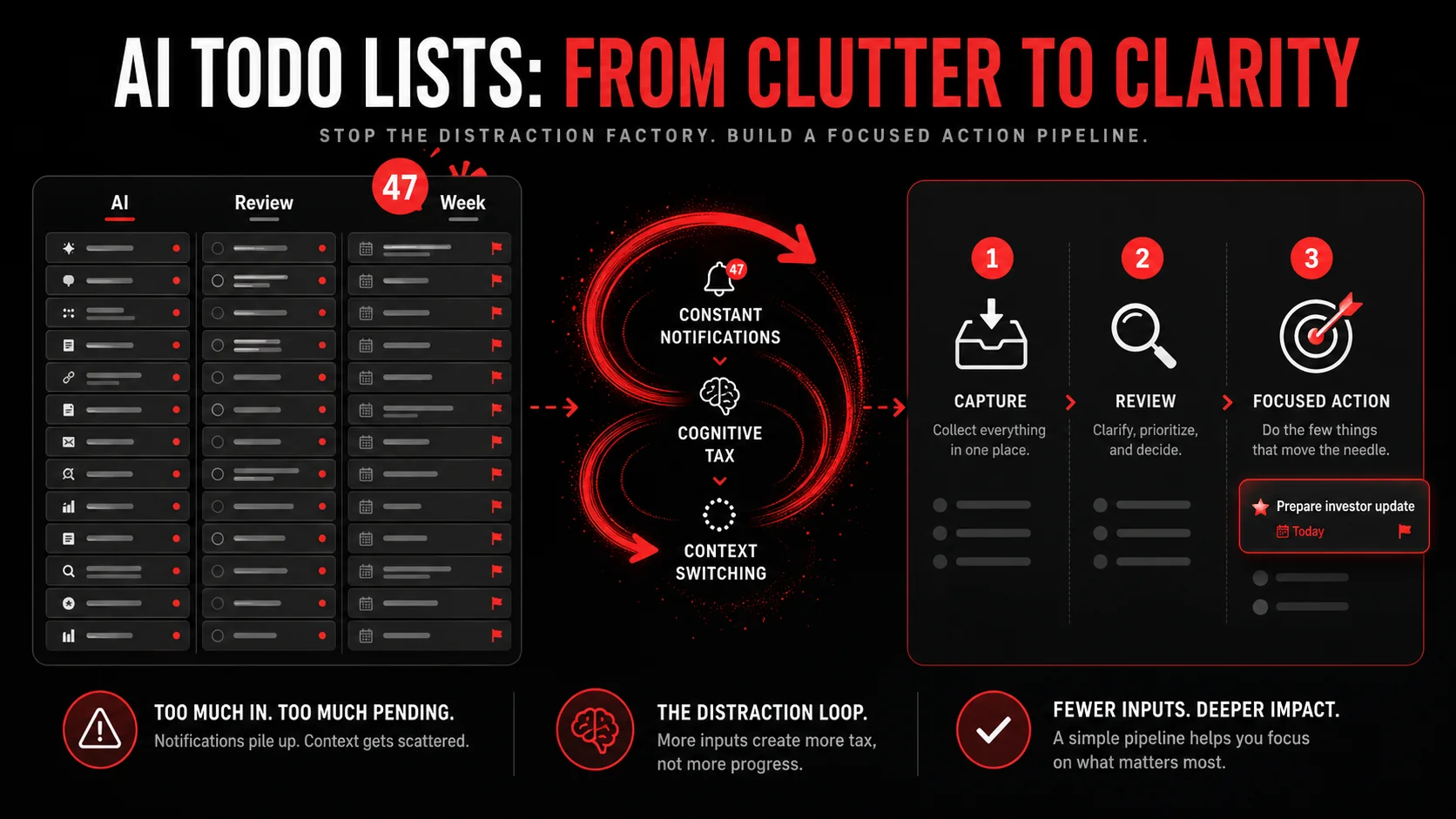
The problem starts with a misunderstanding of what "capture" really means. For a decade, we treated capture apps as digital junk drawers. Read It Later. Bookmark managers. Note-taking apps. Their job was to hold things so we could forget about them. AI changed the game. Now, when you capture something, the AI doesn't just store it. It processes it. It extracts a "todo," assigns a due date (often artificially soon), categorizes it, and then, critically, notifies you that it has done so.
This creates a vicious cycle I call the AI Notification Spiral:
- Low-Friction Capture: You see something interesting. One tap saves it. The barrier is so low you capture everything.
- Automated Task Creation: AI scans the content and creates a generic task: "Explore [Topic]" or "Read [Article]."
- Context-Free Alert: The system pings you about this new task, divorced from the original inspiration or your current work context.
- Cognitive Switch: Your brain must now stop what it's doing, recall why you saved this, and decide what to do with this new, vague obligation.
- Anxiety & Deferral: Overwhelmed, you swipe the notification away or snooze the task, kicking it down the road. The system, seeing an "overdue" task, will likely remind you again later, louder.
The core issue is that these systems are notification-driven, not intention-driven. They are optimized for the act of capturing and reminding, not for the act of doing. They answer "What did you save?" but not "What should you do right now, and why?"
| Old-School Capture (Pre-AI) | AI-Powered Capture (Current Problem) | Intention-Driven Capture (The Fix) |
|---|---|---|
| Goal: Remember later | Goal: Automate task creation | Goal: Enable focused execution |
| Action: Save & forget | Action: Save, parse, & notify | Action: Save, clarify, & schedule |
| Output: A cluttered list | Output: A barrage of alerts | Output: A clear action block |
| Cognitive Load: High (manual processing) | Cognitive Load: High (constant interruptions) | Cognitive Load: Low (processed in batch) |
The difference between AI capture vs. bookmarks is now the difference between an active nag and a passive library. The former demands your attention now; the latter waits for you to be ready.
Why Your AI Todo App Is Making You Less Productive
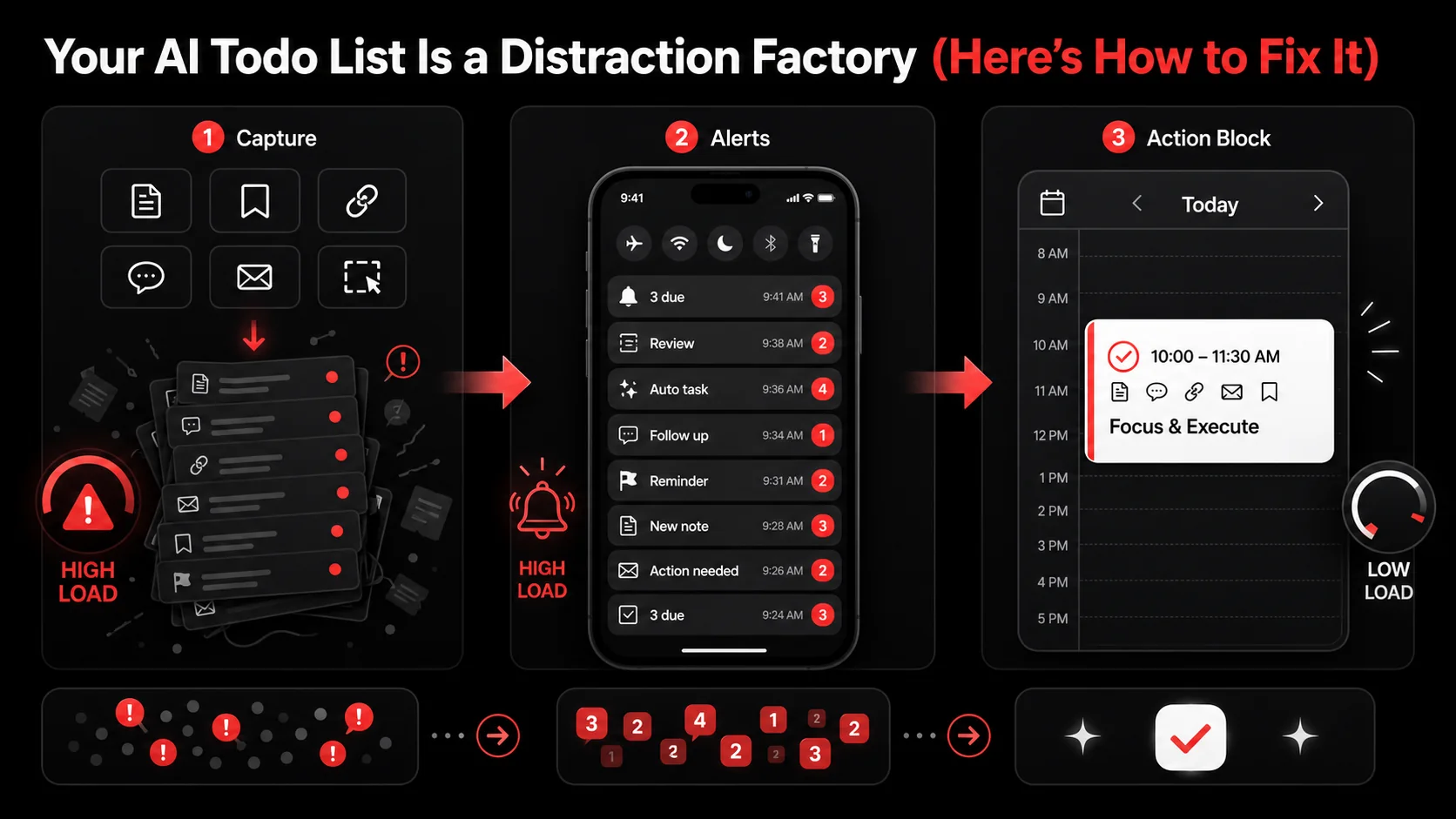
It seems counterintuitive. A tool designed for productivity should make you more productive, right? Not when its success metrics are misaligned with yours. The app's goal is engagement: to get you to open it, to interact with tasks. Your goal is to get meaningful work done and clear your head. These are often in direct conflict.
Let's break down the three specific failures happening in your workflow right now.
1. The Context Stripping Problem
When AI extracts a "todo" from a tweet thread or a video, it performs a brutal act of simplification. It reduces a nuanced idea, often embedded in a specific argument or demonstration, to a generic line item: "Research WebAssembly threads."
What's lost? The why. Why did that topic spark your interest? Was it a performance claim? A specific use case mentioned by the author? A link to a benchmark? The AI strips the context to create a portable task, but in doing so, it makes the task meaningless. When the notification arrives, you're left with a hollow obligation. You have to reinvest mental energy to reconstruct the original interest, which is work you're unlikely to do in the moment. So you ignore it. The task becomes digital clutter, and the notification was just noise.
2. The Priority Illusion
AI is terrible at understanding true priority. It can guess based on due dates you've set in the past or keywords like "ASAP," but it cannot understand your current project's stakes, your energy levels, or your company's shifting goals. Yet, by placing an extracted task into your "Today" view or setting a default 24-hour follow-up, it implicitly assigns a false priority.
This creates what psychologist Barry Schwartz calls the "paradox of choice" mixed with urgency. You're presented with a dozen "priority" tasks that aren't actually important, paralyzing your decision-making. You end up working on whatever screams the loudest (the most recent notification) rather than what matters most. This fractures your developer productivity workflow into reactive chunks instead of cohesive progress.
3. The Capture Addiction Feedback Loop
This is the insidious part. The easier capture becomes, the more we do it. Every capture feels like a tiny win: "I've organized that thought!" This triggers a dopamine hit. But this win is an illusion. You haven't organized anything; you've just offloaded the cognitive load of remembering onto a system that will later bombard you with demands.
The apps, seeking to increase daily active users, encourage this. They celebrate your capture streaks. They show you stats on how many items you've saved. They create a game where capturing is the point, not completion. You end up with a backlog of hundreds of AI-generated tasks, a constant low hum of anxiety from unseen notifications, and the sinking feeling that you're busier than ever but accomplishing less. The system is working perfectly. You are not.
The Capture-to-Execution Workflow: A Practical Fix
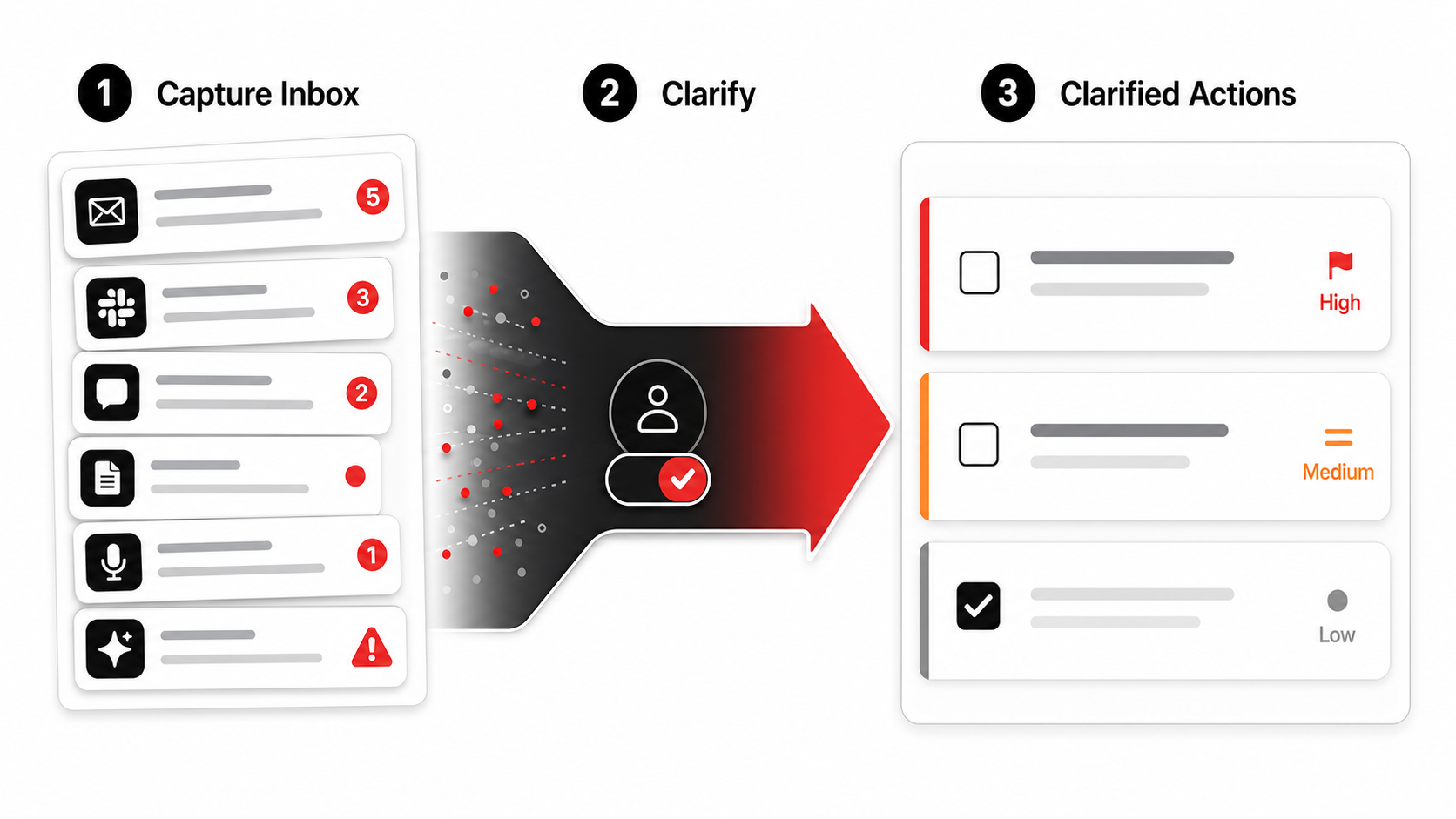
The solution isn't to ditch AI or go back to paper. It's to insert a human-controlled, intentional layer between capture and execution. You need to break the automatic link between "I saved something" and "My device is now nagging me about it."
This is the Capture-to-Execution Workflow. It's a simple but strict three-stage process that turns passive captures into deliberate action. I've used variations of this with engineering teams for years, and the reduction in context-switching and anxiety is measurable.
Stage 1: The Dumb Capture (The One-Tap Rule)
This stage is about speed and frictionless collection. Your goal is to get interesting things out of your head and into a trusted system as fast as possible.
The Tool: Use a dedicated capture tool that does one thing well*: accept input. This could be a specific app or a designated inbox within your task manager. I use an app that lets me capture tweets, videos, and screenshots in one tap from anywhere.
- The Rule: NO PROCESSING ALLOWED. When you see the tweet, watch the video, or have the idea, you capture it and immediately move on with your day. Do not stop to tag it, prioritize it, or think about when you'll do it. The AI can run in the background to transcribe or extract text, but it must not notify you.
- The Mindset: This is your digital backpack. You're just tossing interesting rocks into it for later examination. The value is in the complete capture, not the immediate organization.
Stage 2: The Clarification Batch (The Weekly Review)
This is the critical, non-negotiable human step. Once a week (I do mine every Friday afternoon), you open your capture inbox. This is a scheduled, focused session, not something that interrupts you.
- The Process: Go through every item captured in the last week. For each one, ask the brutal question: "What is the next physical, visible action this requires?"
- The Key: You assign a specific time to do it. Not "soon." Not "today." You look at your calendar for the upcoming week and block 30-90 minutes for "Project Exploration" or "Skill Development" and slot the action there. If you can't find a block for it in the next two weeks, it's not important. Delete it or move it to a "Someday/Maybe" list you review quarterly.
Stage 3: The Focused Execution (The Protected Block)
The final stage is where the work actually happens, and it's blissfully quiet.
- The Setting: When your calendar reminder for your "Project Exploration" block pops up, you start. You have a clear list of 2-3 clarified actions from your batch session. The context is fresh because you linked to the source.
- The Rule: NOTIFICATIONS OFF. Your task manager is in "Do Not Disturb" mode. Your capture app is silent. The only thing that exists is the action in front of you and its source material.
This workflow severs the toxic link between inspiration and interruption. Capture is cheap and silent. Processing is batched and intentional. Execution is focused and protected. Your AI serves you in the background during capture and clarification, but it is never allowed to drive your attention.
Advanced Tactics for the Notification-Proof Workflow
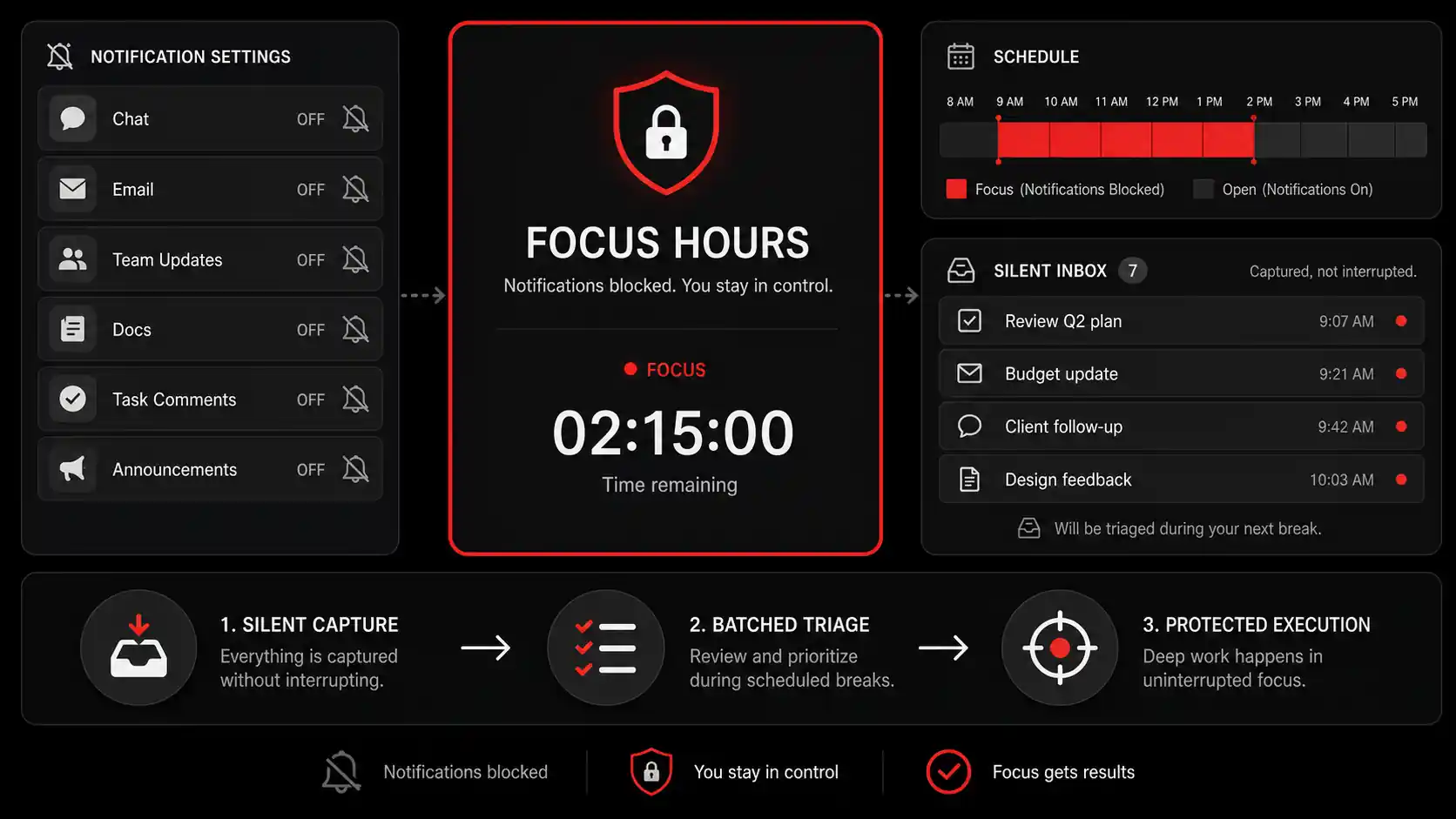
The basic workflow will solve 80% of the problem. These advanced tactics are for the 20%, the edge cases and optimizations that engineers and makers love to tweak.
1. Implement a Digital Triage Protocol
Not all captures are created equal. During your weekly clarification batch, use a quick triage system:
- Under 2 Min Action: Do it immediately during the review. Reply to the tweet, skim the article. Get it out of the system.
- Project-Backed Action: It relates to an active work or personal project. Create the specific task and assign it to that project in your manager.
- Reference Material: It's not an action, it's information. Save it to a knowledge management tool like Obsidian or Notion with proper tags. This is key for separating actionable captures from reference material.
- Incubate: It's a big, vague idea. Move it to a "Project Ideas" document. Review that document monthly. Most ideas will die there, and that's fine.
2. Weaponize System-Level Focus Tools
Don't rely on app settings. Go nuclear with your operating system's controls. Schedule Focus Modes: Use macOS's Focus modes or Windows' Focus Sessions to automatically silence all* non-essential notifications (including from your task manager) during your deep work blocks. Only allow calendar alerts.
- Use a Physical Timer: The Pomodoro Technique works. Use a physical kitchen timer or a dedicated app like Be Focused that lives outside your notification ecosystem. When the timer is running, you are unreachable by digital nudges.
- Separate Devices: If possible, do your capture on your phone (on the go) and your clarification/execution on your computer. This creates a physical and mental separation between the collection and work phases.
3. Build a "Pre-Mortem" for Your Captures
This is a contrarian but powerful idea. When you feel the urge to capture something, pause for five seconds and ask: "What is the likely outcome of this capture?"
- Will it become a task you'll actually schedule in the next week?
- Is this information I will legitimately reference, or am I just saving it to ease FOMO?
- Can I find this again via a Google Search Console-style query if I need it?
Got Questions About AI Todo Distraction? We've Got Answers
How often should I do my clarification batch?
Weekly is the sweet spot for most people. Daily is too frequent and becomes a chore; you won't have enough captures to make it worthwhile. Monthly is too infrequent, and your inbox will become overwhelming, causing you to abandon the process. A weekly Friday afternoon review creates a clean slate for the weekend and a clear plan for Monday.
What if my work requires immediate, reactive tasks?
The Capture-to-Execution workflow is for managing inspiration and self-directed work, not your assigned tickets or urgent requests from your boss. Those belong in a separate stream: likely your team's project management tool (Jira, Linear, Asana). Keep those notifications on during work hours if needed. The key is segregating the streams. Your AI-captured "learn new tech" tasks should never ping you with the same urgency as a critical bug report.
Can I use this with any task manager?
Absolutely. The workflow is tool-agnostic. The core principle is the separation of capture, clarification, and execution. You can use Apple Notes for capture, Todoist for clarified tasks, and Google Calendar for blocking time. Or you can use a single app like Things or Omnifocus, as long as you maintain strict boundaries between the inbox (capture), a processing project (clarification), and your scheduled tasks (execution). The system is more important than the software.
What's the biggest mistake people make when trying to fix notification overload?
They turn off all notifications and then feel anxious about missing something important, so they turn them back on. The mistake is using a binary on/off switch. The solution is curation and scheduling. Instead of "no notifications," aim for "the right notifications, at the right time." Allow calendar alerts during work blocks. Allow communication app alerts during collaborative hours. But permanently silence notifications from your task manager, read-later apps, and AI assistants. Let your schedule drive your actions, not your notifications.
Ready to silence the distraction factory?
Glean is built for the Capture-to-Execution workflow from the ground up. Capture tweets, videos, and screenshots in one tap into a silent inbox. Use AI to transcribe and summarize on your schedule, not ours. Then, clarify and schedule actions on your terms. Turn your feed into a todo list that serves your focus, not fractures it. Start Glean Pro Trial and build a workflow that actually works.
Share what you read. Get your next step.
Every save you share comes back as one task for your project, with the reason it fits you.