Your AI Assistant's 2026 Notification Overload Problem
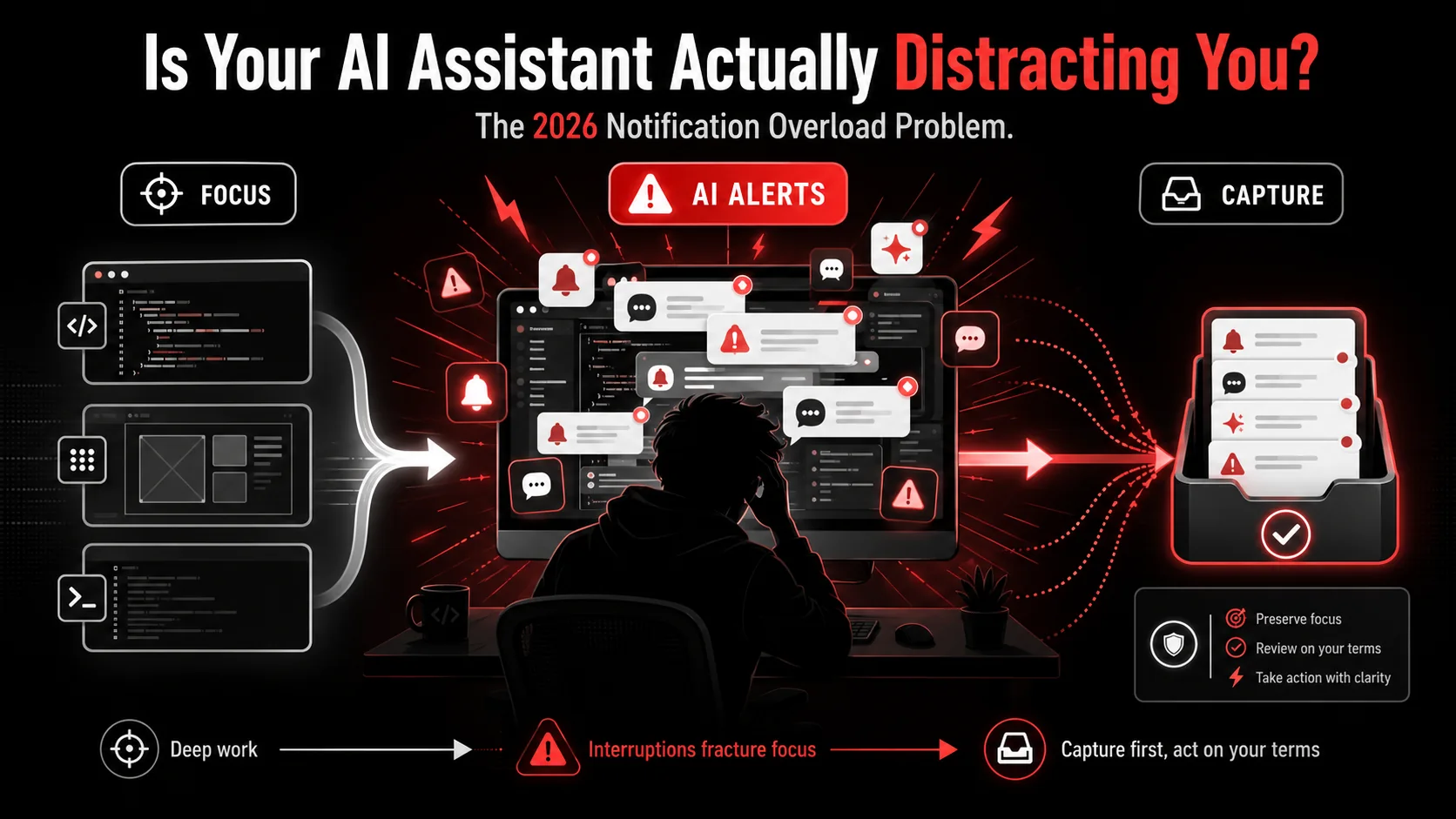
You’re in the zone. The code is flowing, the design is clicking, and you’re finally making progress on that complex feature. Then, a small, friendly chime. A notification slides into the corner of your screen: “Your AI assistant found a more efficient way to structure this function. Want to see?” You ignore it. Two minutes later, another ping: “Based on your recent browsing, here’s an article on a new JS framework you might like.” Your focus, that fragile, hard-won state, shatters.
This isn't a hypothetical. It's the daily reality for developers and creators in 2026. We asked AI to make us more productive, and it responded by becoming the most persistent interrupter in our digital lives. The very tools built to smooth our work are now the primary source of AI notification overload, creating a new category of digital distraction that’s harder to mute than a Slack channel. The backlash is real. Talk of AI fatigue and the spread of silence-mode habits are symptoms of a design flaw in how we've built AI into our workflows. This article isn't about ditching AI. It's about reclaiming it. We'll dissect the notification problem, provide a framework for evaluating your tools, and argue for a different model: one where AI works for you on your schedule, not the other way around.
Understanding the 2026 AI Notification Overload
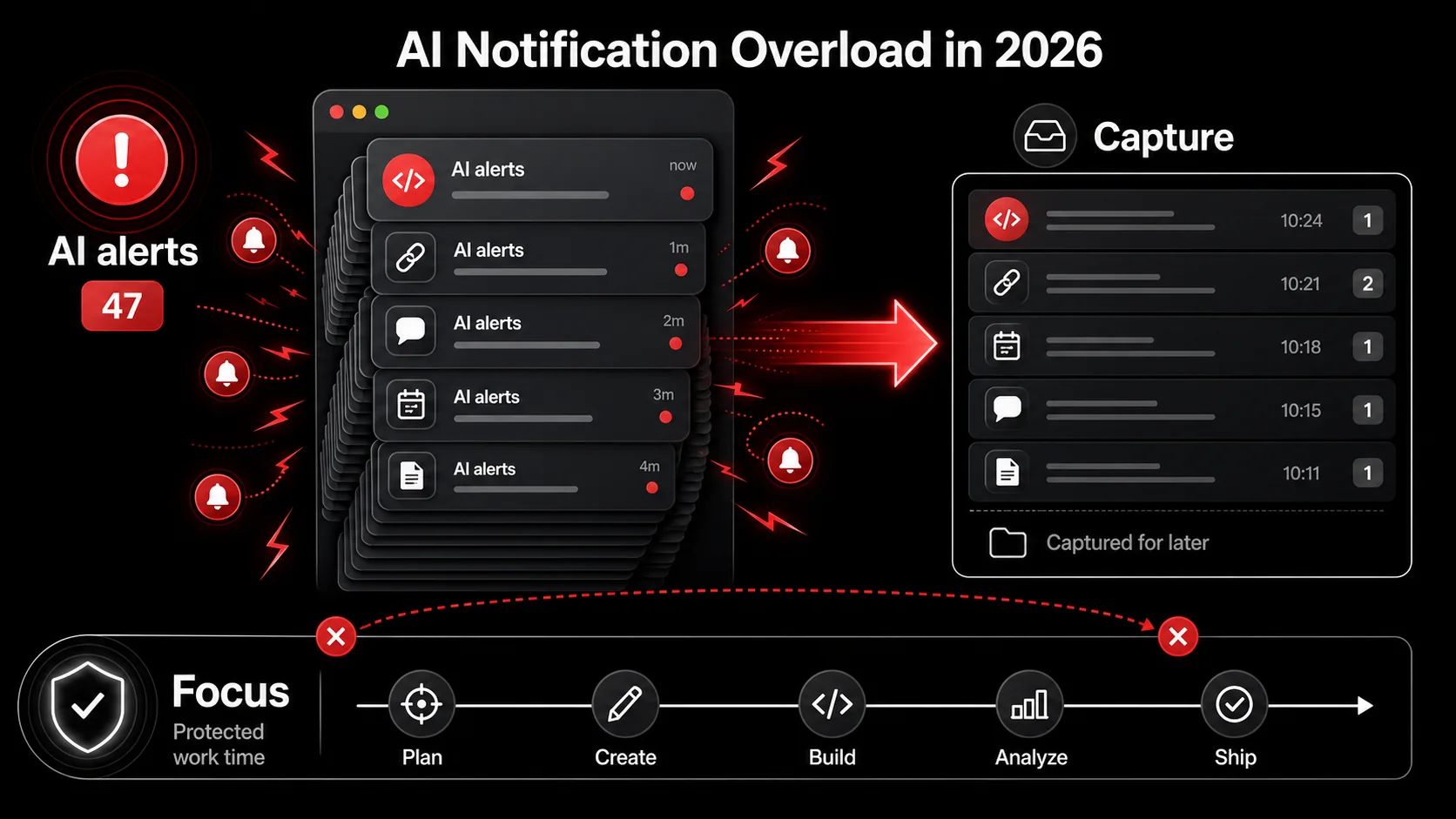
AI notification overload describes the cognitive tax and workflow disruption caused by AI-powered tools that use proactive alerts, suggestions, and prompts to insert themselves into your attention. Unlike passive app notifications (a new email, a calendar alert), these are active inferences. The AI is observing your behavior (your code, your browser tabs, your notes) and deciding, in real-time, that it has something valuable to say. The problem isn't the intelligence; it's the timing and the presumption.
The shift happened subtly. Early AI tools were command-driven. You asked a question, you got an answer. The new generation, epitomized by tools like the now-ubiquitous desktop copilots and "ambient" assistants, is suggestion-driven. They operate on a continuous analysis loop, constantly looking for "helpful" moments to intervene. Watch your own reflex for one afternoon and count how many AI suggestions you swatted away without reading a word. That reflex is the tell. You now filter your assistant like spam, which means it taxes your attention on every single interruption, including the ones where it was right.
This creates a paradox. The tool's success metric (how many helpful suggestions it makes) is directly at odds with the user's success metric (uninterrupted, deep work). The AI is incentivized to be noisy to prove its worth.
Let's break down the primary offenders:
- The Code Interrupter: Your IDE plugin that highlights "potential inefficiencies" as you type, suggesting alternative libraries or refactoring your logic mid-flow.
- The Research Rabbit-Hole Generator: Your browser extension that, upon detecting you're reading a technical blog, surfaces "5 related papers you must read" and "a relevant podcast episode."
- The Meeting Micromanager: The AI notetaker that pings you after a call with: "Action item detected: 'Follow up with design.' Would you like me to create a task?"
- The Ambient Context Switcher: The OS-level assistant that sees a screenshot on your clipboard and asks if you want it "analyzed for text, saved to notes, or shared with your team."
| AI Assistant Type | Primary Trigger | Typical Notification | The Hidden Cost |
|---|---|---|---|
| Code Copilot | Inline code patterns | "Consider using map() here for better readability." | Breaks syntactic flow and problem-solving state. |
| Research Assistant | Browser content/topic detection | "I found a deeper dive on this architecture. Read now?" | Derails linear learning into unstructured browsing. |
| Meeting Summarizer | Voice transcript keywords | "Action item for you: 'Send specs.' Create a task?" | Forces immediate meeting debrief instead of batch processing. |
| Universal Capture | Screenshot, copy-paste | "I detected a code snippet. Save to notes or extract tasks?" | Interrupts the capture act with premature organization. |
The core issue is one of agency. Proactive notification models strip away user control, placing the AI on a timer. It decides when you need help. A calmer, more effective model (which we'll explore in our guide to taming AI-driven digital distraction) returns agency to the human. The AI becomes a powerful but patient resource, waiting to be consulted.
Why This Matters: The Real Cost of Interruptive AI
The immediate annoyance of a ping is just the surface. The deeper costs of notification-driven AI are eroding the quality of work for developers and creators. It's not just about lost time; it's about degraded output.
First, it fragments deep work. Cal Newport's concept goes beyond a productivity hack for developers; it is the engine of creative and technical problem-solving. Deep work requires uninterrupted concentration to build and hold complex mental models. A notification from an AI assistant, however well-intentioned, doesn't just steal 30 seconds. It collapses the fine scaffolding of thought you've built. The research on human context-switching is direct about the price. According to Gloria Mark, whose lab has measured screen attention since 2004 and who set out these figures for the American Psychological Association, the average stretch of attention on a single screen now runs about 47 seconds, with a median of 40, and "the faster the attention switching occurs, stress is measured... stress goes up." When your AI tool interrupts your coding session to suggest a better algorithm, it is not offering an alternative so much as forcing you to dump your current solution from working memory to evaluate its proposal. You often end up worse off.
Second, it trains reactive behavior. Our tools shape our habits. When an AI constantly serves up "the next thing to look at," it conditions us to be passive consumers of suggestions rather than active drivers of our priorities. Your workflow becomes a response to an AI's queue instead of a execution of your intent. This undermines the strategic planning that's essential for building an effective AI-powered workflow. You stop asking "What's the most important problem to solve?" and start responding to "Here's a problem I noticed."
Third, it creates alert fatigue and missed signals. When everything is "potentially important" (an optimization! a new article! a summary!), nothing feels truly urgent. You start ignoring all notifications, including the rare, genuinely critical one from a system monitor or a collaborator. The boy who cried wolf is now an algorithm.
Finally, and perhaps most insidiously, it externalizes judgment. Constant suggestions subtly transfer the burden of evaluation from your own expertise to the AI's confidence score. "Should I refactor this?" becomes a question answered by a notification's presence, not your own code review. Over time, this can atrophy the very critical thinking and technical judgment these tools are meant to augment. The goal of any good tool should be to make you a better practitioner, not a more obedient operator.
The pivot we're seeing in the market (with competitors like Recall.ai promoting "focus modes" and Sparrow Assist advertising "ambient, not intrusive" help) is a direct admission of this problem. They're trying to retrofit calm onto a fundamentally noisy architecture. It's a patch, not a redesign.
How to Audit and Tame Your Notification-Driven AI
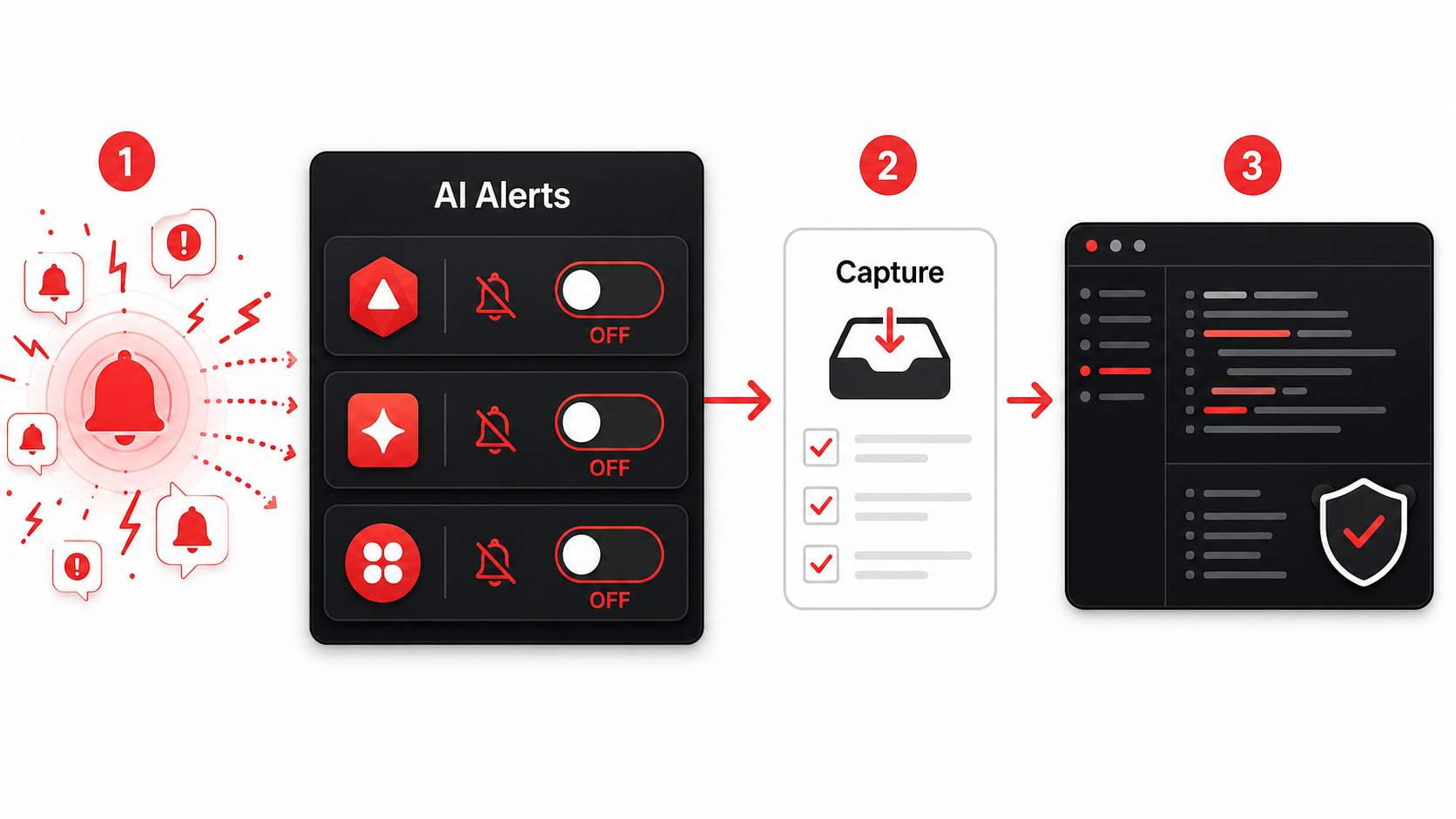
You don't need to uninstall every AI tool on your machine. The solution is strategic muting and a shift in philosophy. Think of this as a digital hygiene audit for your AI stack. The goal is to convert your tools from interrupters to on-demand consultants.
Step 1: The Notification Inventory (The "What's Actually Pinging?" Audit)
You can't manage what you don't measure. For one typical workday, don't change any behaviors. Instead, take note. Use a simple note-taking app or even a physical notepad.
- Log every AI-driven notification. Not all notifications are equal. Ignore standard app alerts (Slack, Email). Focus only on alerts that are generated by an AI's analysis of your activity.
- Categorize them. Use a simple system: Code Suggestion, Research Suggestion, Task Creation, Other.
- Rate the value. In the moment, ask: Did this alert provide immediate, actionable value that was worth breaking my focus? Mark it as
Yes,No, orMaybe Later.
Step 2: Run an aggressive muting campaign
Muting aggressively means switching off every AI alert first and re-enabling only what earns its place.
Armed with your inventory, it's time to silence the noise. This isn't about disabling the AI; it's about disabling its unsolicited voice.
- System-Level: Go to your OS notification settings (macOS System Settings > Notifications, Windows Settings > System > Notifications). Disable notifications entirely for the most egregious offenders. Tools that only function via pop-ups are poorly designed.
- App-Level: Dive into each AI tool's settings. Look for options like:
- Browser Extension Purge: Review your browser extensions. That handy AI summarizer or research sidebar is likely a prime culprit. Remove any you haven't consciously used in the last week. For those you keep, ensure their permission to "read site contents" is only active on sites where you explicitly want that functionality.
/ai), a keyboard shortcut, or a deliberate button click should be the only trigger.
Step 3: Adopt a capture-first, interrupt-never protocol
Capturing instead of interrupting means the tool writes to an inbox you visit, never to a banner you cannot ignore.
This is the core mindset shift. Instead of letting AI parse your active work and interrupt, create a system where you capture inputs for the AI to process asynchronously.
This is where the model of a tool like Glean diverges fundamentally. The core interaction isn't a notification; it's a capture. You see a useful tweet thread, a key moment in a YouTube tutorial, or a complex error message. With one tap (via a Chrome extension or iOS share sheet), you send it to your Glean inbox. The AI then works in the background: it transcribes videos, extracts text from images, and identifies potential action items. The output isn't a pop-up. It's a neatly organized note with extracted todos, waiting for you in a project folder when you next open the app during your dedicated review time.
This protocol applies beyond any single tool:
- For Code: Use your IDE's "bookmark" or "TODO" comment feature. When a copilot suggestion sparks an idea for a broader refactor, don't explore it now. Drop a
// TODO: Refactor auth logic using X - [LINK TO GLEAN CAPTURE OF DOCS]and keep moving. - For Research: When browsing, use a single, simple capture tool. Don't stop to read the AI's suggested "5 related articles." Capture the original piece. Later, in a dedicated research block, you can review the capture and then ask your AI to find related content based on that single, focused source.
- For Tasks: Never let an AI create a task in the moment. Let it suggest one, but have a universal capture step. The meeting AI can add "Suggested action: Follow up with design" to the transcript, which you capture. Later, you review the transcript and formally create the task yourself in your project management system. This maintains your editorial control over your task list.
Step 4: Schedule consultation hours with your AI
Consultation hours give the assistant a slot on your calendar instead of a permanent claim on your attention.
Block time on your calendar for "AI Review." This could be 30 minutes before you close the laptop, or 20 minutes after your weekly planning. This is when you open your capture inbox, review the processed items from Glean, evaluate the // TODO comments you left in your code, and process any batch summaries.
During this time, you actively query your AI tools:
- "Based on the five articles I captured this week on Next.js 15, give me a synthesis of the key migration changes."
- "Review my
// TODOcomments from thebackend/authdirectory and prioritize them by estimated impact." - "From my meeting transcripts, generate a consolidated list of all decisions made."
The Capture-First AI Stack: A Calmer Alternative
If the proactive notification model is broken, what replaces it? A capture-first AI stack. This isn't a single tool, but a philosophy for assembling your tools where the primary interface is a frictionless "save for later" action, not a real-time suggestion engine.
The stack has three layers:
- The Universal Capture Layer: This is your front door. It must be dead simple, available everywhere, and agnostic to content type. A browser extension, a mobile share sheet, a global keyboard shortcut. Its only job is to accept inputs: text snippets, URLs, screenshots, videos, PDFs. Glean operates here, but the principle is key. Nothing is analyzed during capture. The goal is zero friction and zero interruption.
- The Asynchronous Processing Layer: This is where the AI works silently. After capture, this layer ingests the raw material. It transcribes audio and video, extracts text from images, summarizes long articles, and identifies potential action items or code snippets. Critically, it does this on its time, not yours. You set the rules (e.g., "always transcribe videos," "extract todos from project briefs").
- The Review & Query Layer: This is your interface. It's a clean, organized space (like a Glean project folder or a Notion database) where the processed captures live. Here, you have powerful query tools. You can search across all processed content. You can ask questions of your captured knowledge base: "Show me all captures related to user authentication from the last month." The AI's power is now at your command, not in your face.
- Notification-Driven: You're coding > AI pings with suggestion > You evaluate > You accept/reject > You try to regain focus.
- Capture-First: You're coding > You see a complex error > You screenshot it and capture to Glean > You continue coding. Later, in review mode, you open the capture. The AI has already extracted the error text and linked to relevant docs. You solve it in a focused context.
This model also future-proofs your work. Every capture becomes a searchable node in your personal knowledge base. That tweet you saved six months ago about a niche WebGL trick can be found instantly when you need it. The notification model offers only ephemeral, immediate suggestions. It has no memory for you.
Implementing this stack requires discipline. You must trust the "save now, process later" loop. But the reward is a digital environment you control, where AI is a powerful utility you switch on, not a chatterbox you can't switch off.
Questions about AI and focus, answered
These are the questions we hear most about taming AI notifications without abandoning the tools.
How often should I audit my AI tool notifications?
Do a formal audit, like the one described above, quarterly. The AI tool market changes fast, and updates often reset preferences or add new "helpful" notification features. A quick, informal check is wise whenever you install a new tool or update a major one. The default setting for most AI tools in 2026 is still "notify aggressively," so assume you'll need to opt-out of noise.
What's the biggest mistake people make when trying to reduce AI distraction?
They go on a deletion spree and remove tools they actually find valuable. The mistake is conflating the tool's function with its notification behavior. The first step should always be a surgical muting campaign within the settings. Turn off every proactive alert, suggestion, and ping. If the tool becomes useless (e.g., a code copilot that only works via inline pop-ups), then consider replacing it. But often, you'll find the core functionality (accessed via a command palette or direct query) remains powerful and distraction-free.
Can I use AI to help manage distraction from other AI tools?
Yes, but carefully. You can use a tool like a macOS Shortcut or an automation platform (Zapier, Make) to create rules. For example, you could route all notifications from certain apps to a dedicated "AI Suggestion" summary that gets emailed to you once a day. However, this adds complexity. A simpler, more direct approach is almost always better: mute at the source. Using AI to fix AI noise can feel like an infinite loop.
Should I just turn off all notifications?
As a blanket rule, no. That's a brute-force solution that can make you miss important human communications (urgent messages from teammates, system alerts). The goal is discrimination, not elimination. Learn to distinguish between interruptions (unsolicited suggestions, proactive "help") and informational alerts (direct messages, calendar reminders, CI/CD build failures). Turn off the former categorically. Fine-tune the latter based on priority.
Ready to build a calmer, more focused AI workflow?
The promise of AI is augmentation, not interruption. Glean helps you harness that promise with a capture-first model designed for deep work. Stop letting notifications shatter your flow. Start capturing inspiration and letting AI organize it on your schedule. Start Glean Pro Trial and experience productivity that doesn't ping.
Share what you read. Get your next step.
Every save you share comes back as one task for your project, with the reason it fits you.